
How to print a problem set or export it to Moodle or QTI
Open the problem set's Assign step and press Preview & export. Print the questions or the answer key as PDF, download the student version (.athanor, no answers), or export Moodle XML or QTI 2.1 for Canvas and Blackboard.
Steps
Open the problem set and choose Assign at the top left.
Press Preview & export. It is available once every problem has its answer drawn; until then it says which one does not, for example "Problem 1 has no answer drawn yet."
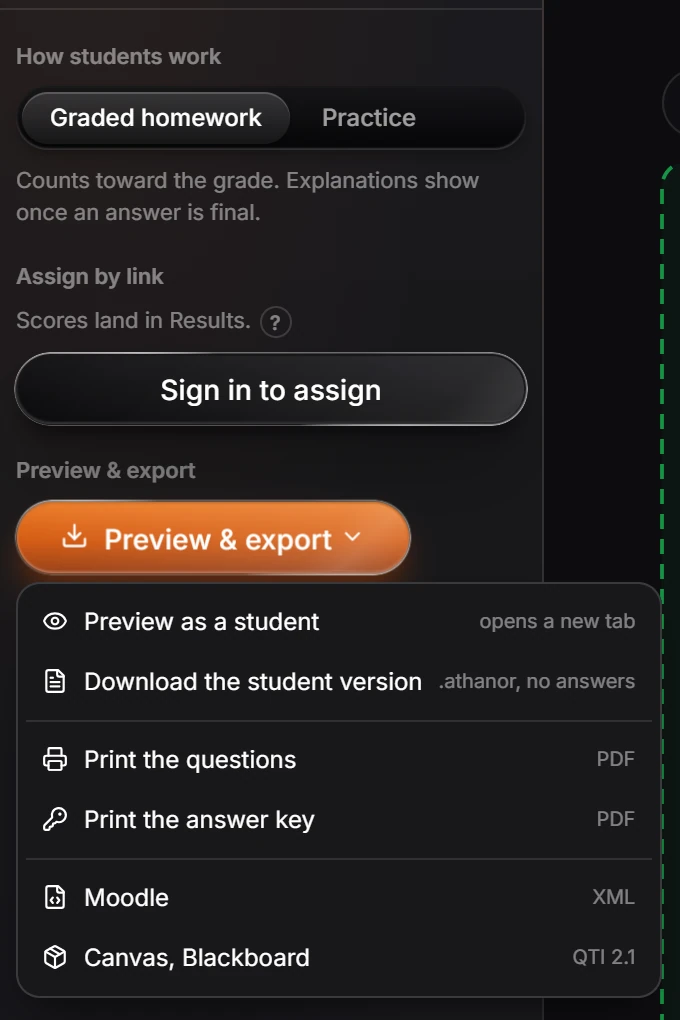
Choose what you need:
| Option | Gives |
|---|---|
| Preview as a student | The set as a student sees it, in a new tab |
| Download the student version | An .athanor file with no answers in it |
| Print the questions | A PDF of the questions |
| Print the answer key | A PDF with the answers |
| Moodle | A Moodle XML file to import into a Moodle quiz |
| Canvas, Blackboard | A QTI 2.1 package for Canvas, Blackboard and other quiz tools that read QTI |
Options for Moodle and QTI
- LMS versions: One version uses your own values. 3, 5 or 10 versions put each problem that has variables in that many times, and the LMS gives each student one at random.
- Sig figs: significant figures are graded as each problem sets them, where the LMS can. The export says where it cannot.
Some question types do not map one to one onto an LMS. The export lists them, for example that Moodle marks each gap of a fill-in question as one point, so you can set the mark in the quiz.
To grade inside Athanor instead, with results and a gradebook, assign the set by link (signed in), or connect your LMS with LTI.
Is this helpful?
Last updated Nov 15, 2026
- Still stuck? Read the FAQ or contact support.
- Something wrong on this page? Tell us.
- For AI tools: llms.txt